
If you've ever tried to use a computer running Windows 7 Home Premium as a Remote Desktop host you know the sad truth. You can't! If you ask Microsoft they'll tell you to get Windows 7 Professional (and pay us extra money for it). However, if you're like me I only needed 1 feature from Windows 7 Professional that wasn't in Home Premium, Remote Desktop.
Luckily, there is a very easy solution (and don't say VNC… it sucks). There is a very easy way to enable remote desktop on Windows 7 Home Premium. Simply follow the instructions below and you'll be running a Remote Desktop (RDP) host on Windows 7 Home in a matter of minutes.
The First thing you need to do is download the Concurrent RDP Windows 7 RTM Patcher. You can get it here or here (mirror). Please, be safe and scan this file for viruses after you download it. I scanned it when I used it and it came up clean, but I don't host this file / didn't create it and you can't be too careful.
Now that you have the patcher downloaded we can start the process of unlocking remote desktop on your Windows 7 Home Premium computer.
- Unzip the file you downloaded.
- Right-click on the install file and click Run as administrator. If you receive a UAC prompt click "yes"
- After this the Windows 7 RTM patcher will be opened in a new command window. It will look like this.
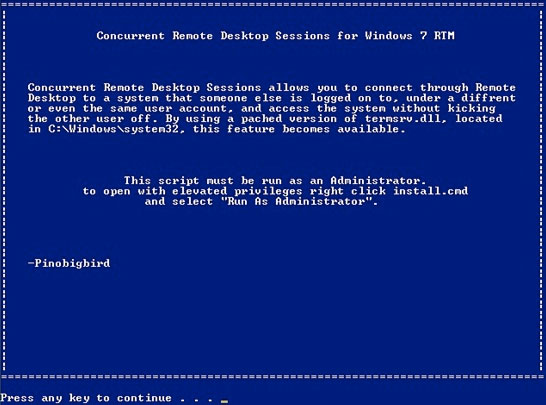
Windows 7 Remote Desktop Patcher
At this prompt feel free to read the text then press any key to start the process
- Next you will see the following screen. This is asking if you want to allow multiple sessions per user. In most cases you do. So my advise is answer yes. So, you want to type Y and hit enter.

Windows 7 enable Remote Desktop
- Then you will be presented another question (pictured below) this will allow you to use a blank password on RDP. Again, I advise answering yes. Even if you say yes you CAN still use a password if you want, but if you ever want to use a blank password you can't if you answer no. Leave your options open and type Y and hit enter.

- Wait and wait.. for me this step took quite a while. The patcher will now do all the work the double check that the fix worked. For whatever reason it waited a long time to ensure the service was actually listening for Remote Desktop connections. Once it's complete your screen should look like this.
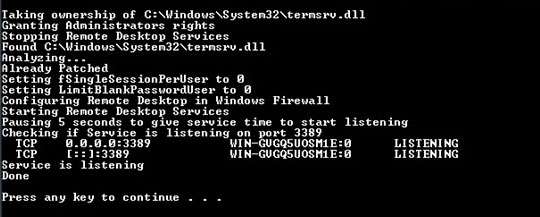
Remote Desktop Enabled on Windows 7
Press any key and you should be all set.




On my computer for some reason it failed to properly configure the firewall. If this happens to you just go to the Windows control panel and click on firewall. Then, add an incoming TCP exception on port 3389 and you should be good to go.
Thats it now you can enjoy using remote desktop (RDP) on Windows 7 Home Premium.
nir
November 13, 2010 at 2:38 am
how do I set password after answering Y on the blank password?
Chuck
March 20, 2011 at 4:35 am
Just tried it on Win7 Home Prem w/ SP1, Works just fine. THANKS !
Nir – You set a password on the Windows account on the computer you are going to connect to.
joe
April 15, 2011 at 3:16 am
The script doesn’t work on my windows 7 home premium x64
OLIVIER
May 11, 2011 at 7:07 am
same thing, didn’t work for me on x64. Complains that mapping between account names and security IDs has not been done.
David
May 23, 2011 at 7:37 pm
Found an updated version of this patch…also has a nice GUI & works quickly
http://experts.windows.com/frms/windows_entertainment_and_connected_home/f/114/t/79427.aspx
J
June 4, 2011 at 2:11 am
Do you know if this has been updated to work with SP1? I have an older version of this great utility and it fails after SP1 update on 64-bit machine.
dan
September 27, 2012 at 9:31 pm
Wow dewd, just what I was looking for. Thanks
Patrick
March 1, 2013 at 8:22 pm
Forget it.
Both links for getting the “patcher” are BAD. Other links are on net but don’t work.
See Microsoft hands in this issue?
srini
July 11, 2013 at 3:31 pm
Remote desktop can be readily available in All Programs/Accessories or type in mstsc in search bar. It will take you to remote desktop immediately.
Lenny
November 6, 2013 at 9:07 pm
That is remote desktop CLIENT. This is how to set up your computer as a remote desktop SERVER.